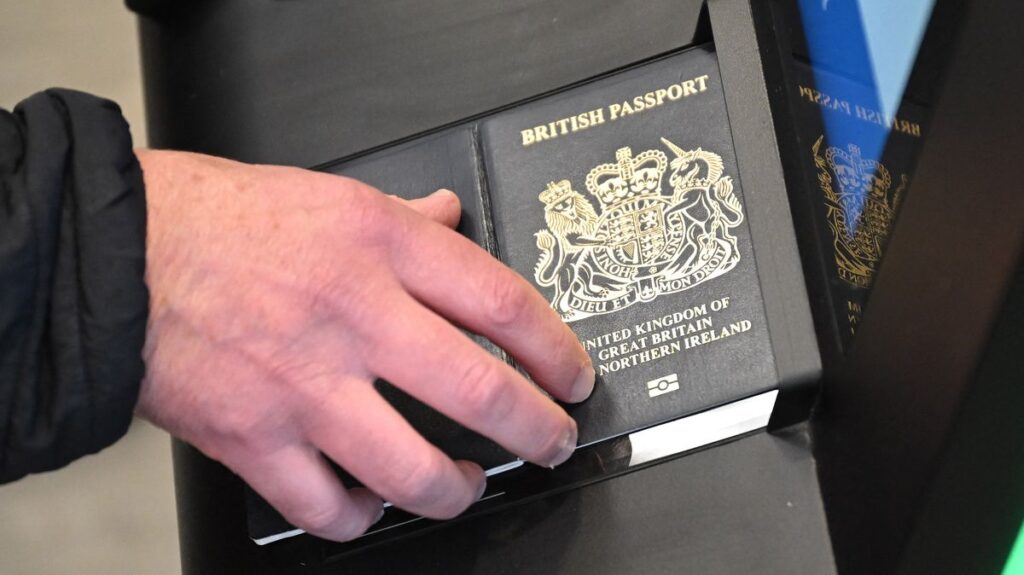
Passport holders have been urged to change a key phone setting before they arrive at airports to travel. Failing to do so could see them facing delays in queues
We all love jetting off abroad at this time of year, but sometimes making simple mistakes at the airport can lead to risking delays in queues. While many people worry about their clothing, and what they have packed in their cases, something they should actually be paying more attention to is their mobile phones.
Little you may know, using a certain setting can actually lead to people spending more time in queues at security, and delaying their travel journey. Nobody wants to have to face lengthy queues when they start their holiday so an expert has shared some key travel tips to help passport holders out.
It’s not the only advice of its kind to be shared recently either. Previously, tourists were also advised to take passport action before travelling to reduce the risk of problems at the airport.
You may not realise, but a dim screen is one of the most common reasons boarding passes fail to scan at the gate. Experts say a few simple phone tweaks before you leave home can save serious stress on travel day, and the changes take seconds to complete.
According to William Thackray, IT expert at AGT Computer Services, a dim screen is one of the most frequent and easily avoidable causes of delay at airport security and boarding gates.
He said: “Scanners need a clear, bright image to read a barcode or QR code reliably. In bright airport lighting, a screen that’s sitting at its default brightness – or that’s been dimmed to save battery – can cause a failed scan.
“It sounds trivial, but it holds up the queue and it’s completely avoidable.”
What you need to do
Before you leave the house, drag your screen brightness to maximum. On an iPhone, swipe down from the top right corner to access the Control Centre and pull the brightness slider to the top. For Android, swipe down from the top of the screen and do the same.
While you’re at it, William recommends a few other quick changes that can make the whole airport experience smoother. To begin, he said it’s a good idea to screenshot your boarding pass.
Don’t rely on an app that needs a signal or a Wi-Fi connection to load. A screenshot lives on your phone and opens instantly.
He said it’s also a good idea to turn off auto-lock. If your screen goes dark mid-queue, you’ll be unlocking your phone and re-opening your boarding pass with a line of people behind you.
Go to Settings > Display and bump your screen timeout up to at least two to three minutes before you travel. This could make a big difference.
You should also make sure your phone is fully charged. It sounds obvious, but some airports – especially when travelling to the US – can ask you to power up your device at security.
A dead phone can mean real delays, or worse, having your device taken for additional screening. William added: “None of these things take more than a minute to sort before you leave the house.
“But, on a busy travel day, that one minute of prep can be the difference between breezing through and being that person holding everyone up.”